

iMap & Email
Credential Setup
What access we need
A full breakdown of what ApplyPass can and cannot do with your connected inbox.


We only extract structured metadata from application confirmation emails — things like the company name, role, and date. We do not process or store other emails in your inbox.
Setup Part 1
Generate a 16-character code that gives ApplyPass limited IMAP access to your Gmail
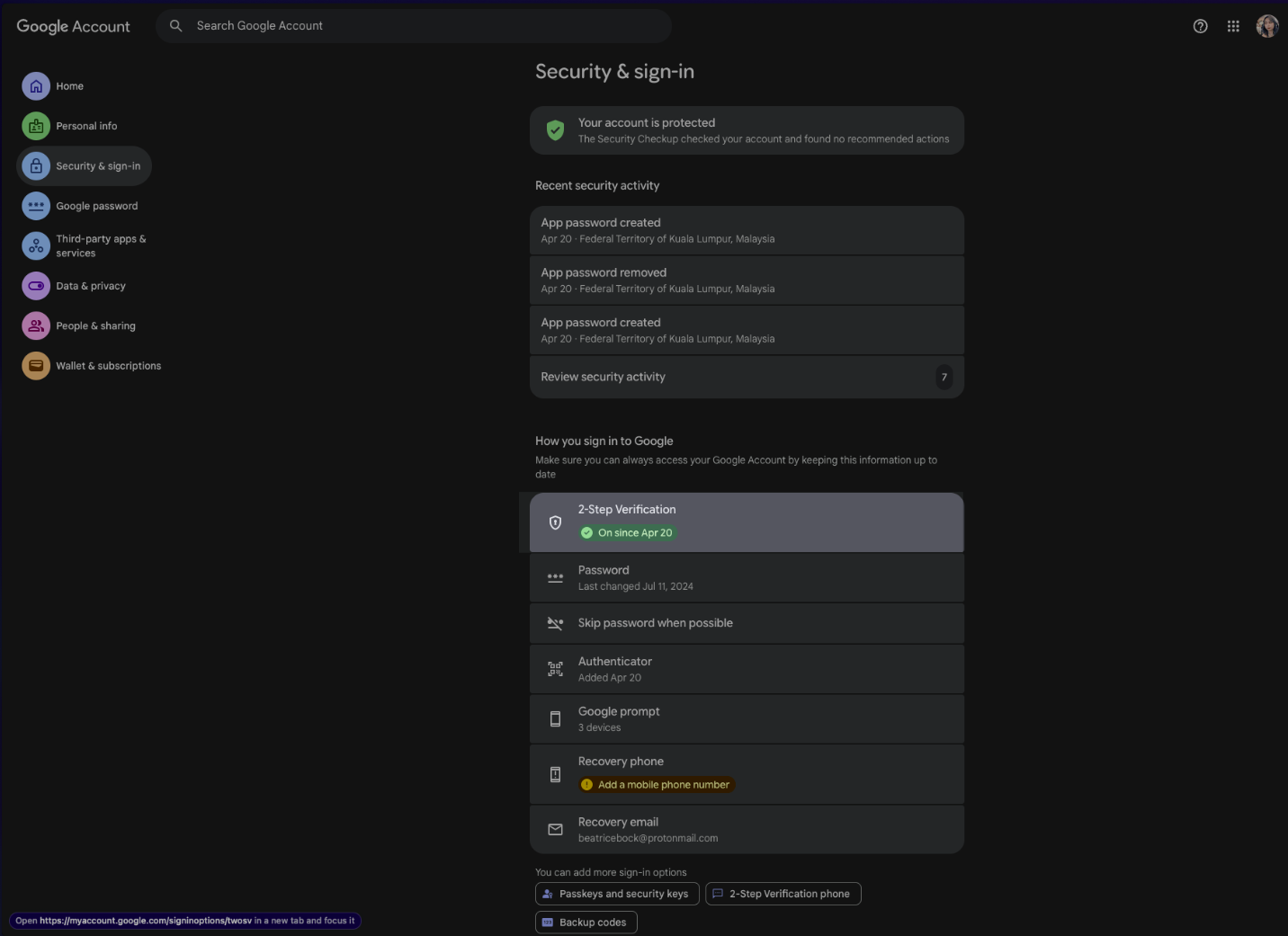
1. Go to your Google Account security settings
Open myaccount.google.com/security in your browser. Make sure you're signed into the correct Google account — the one you'll use for job applications.
2. Open 2-Step Verification
Click on 2-Step Verification in the "How you sign in to Google" section. If the row already shows On with a date, skip ahead to step 6.
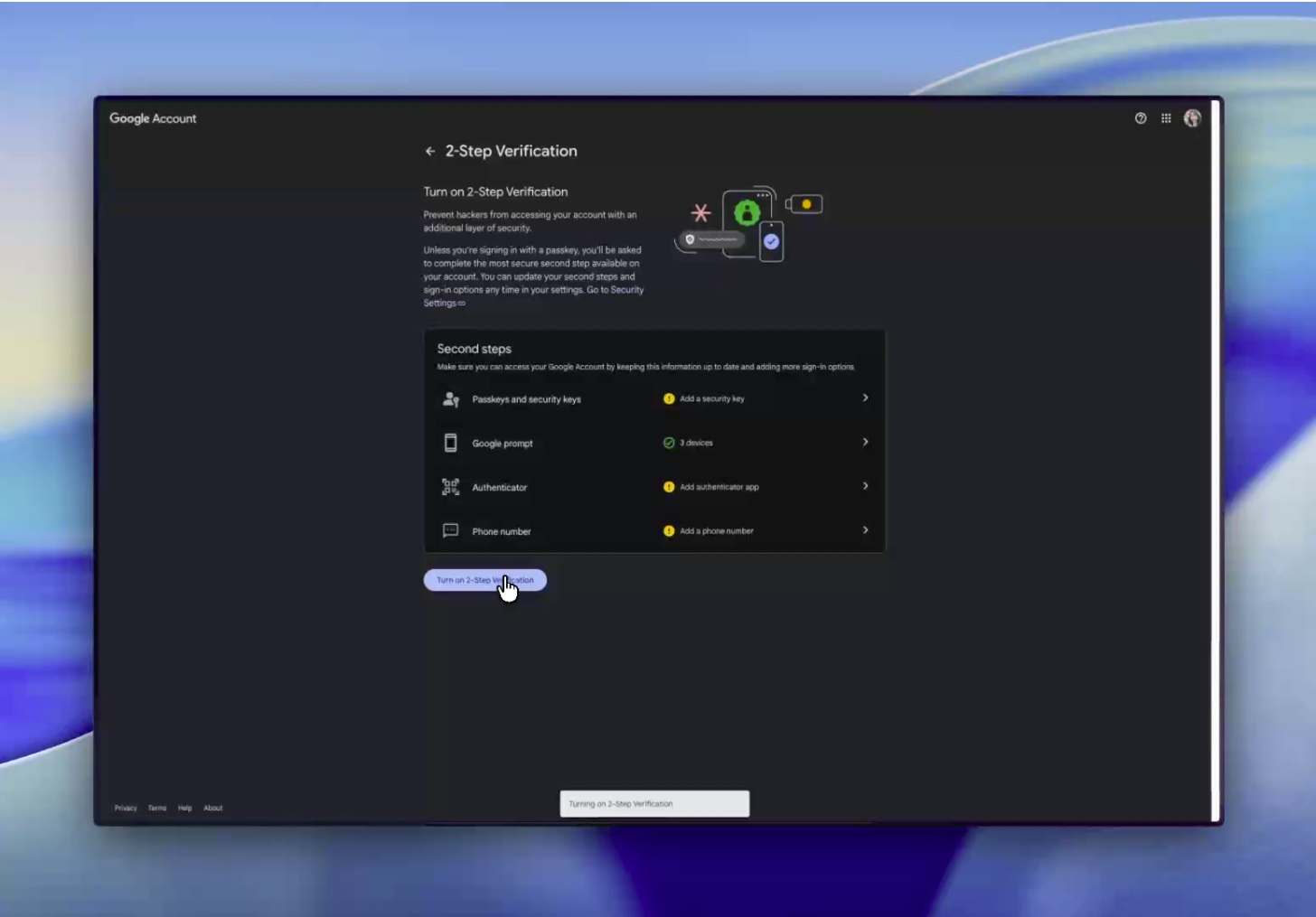
3. Turn on 2-Step Verification
Click Turn on 2-Step Verification and follow the prompts. We recommend setting up Google Prompt or the Authenticator app, but any option will work.
4. Complete the 2-Step Verification setup
Follow through the setup wizard for your chosen second factor. Once done, click the ← back arrow in the top-left corner to return to the Security page.
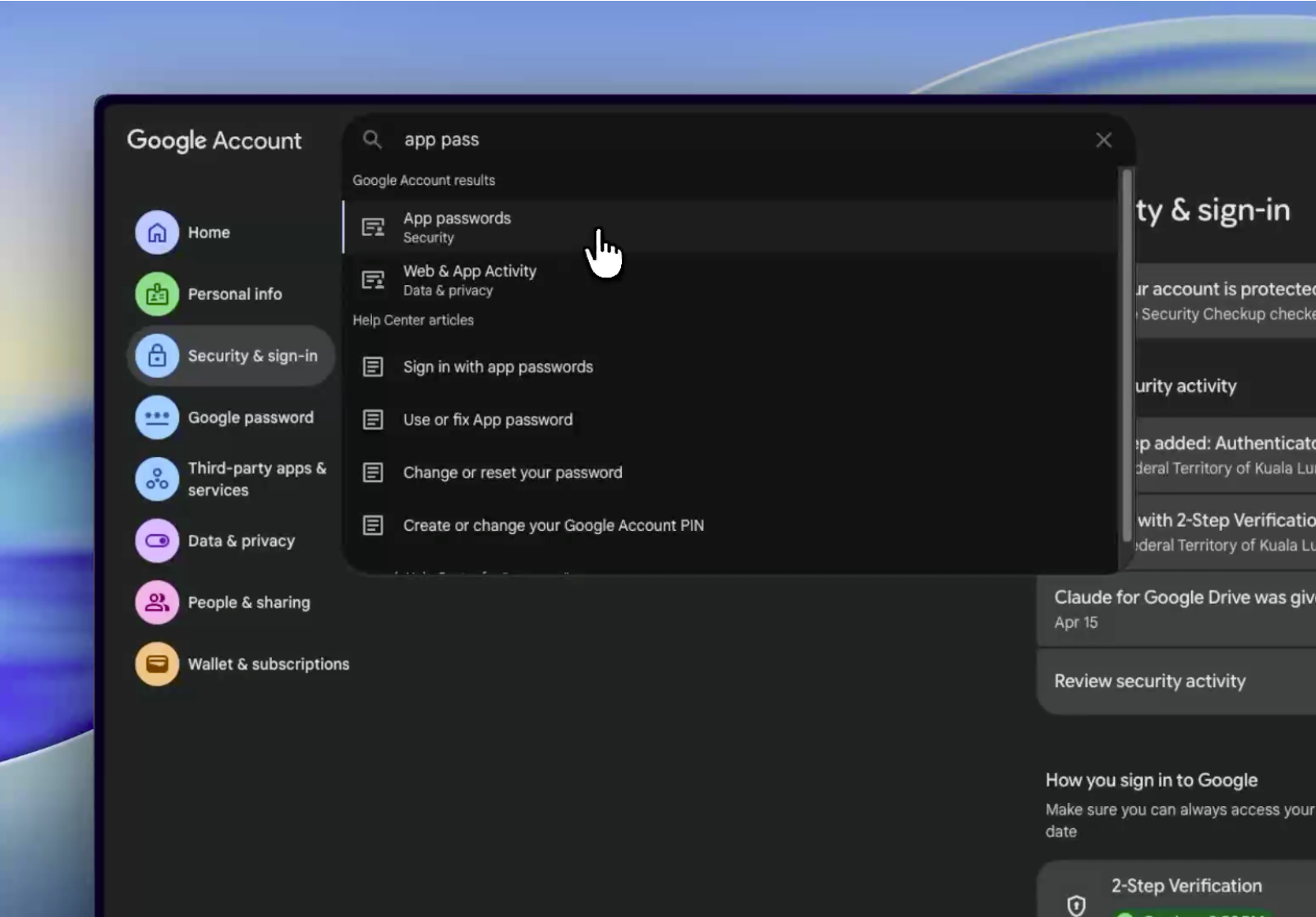
5. Search for "App Passwords"
In the search bar at the top of your Google Account, type App Passwords and click the result that appears in the dropdown.
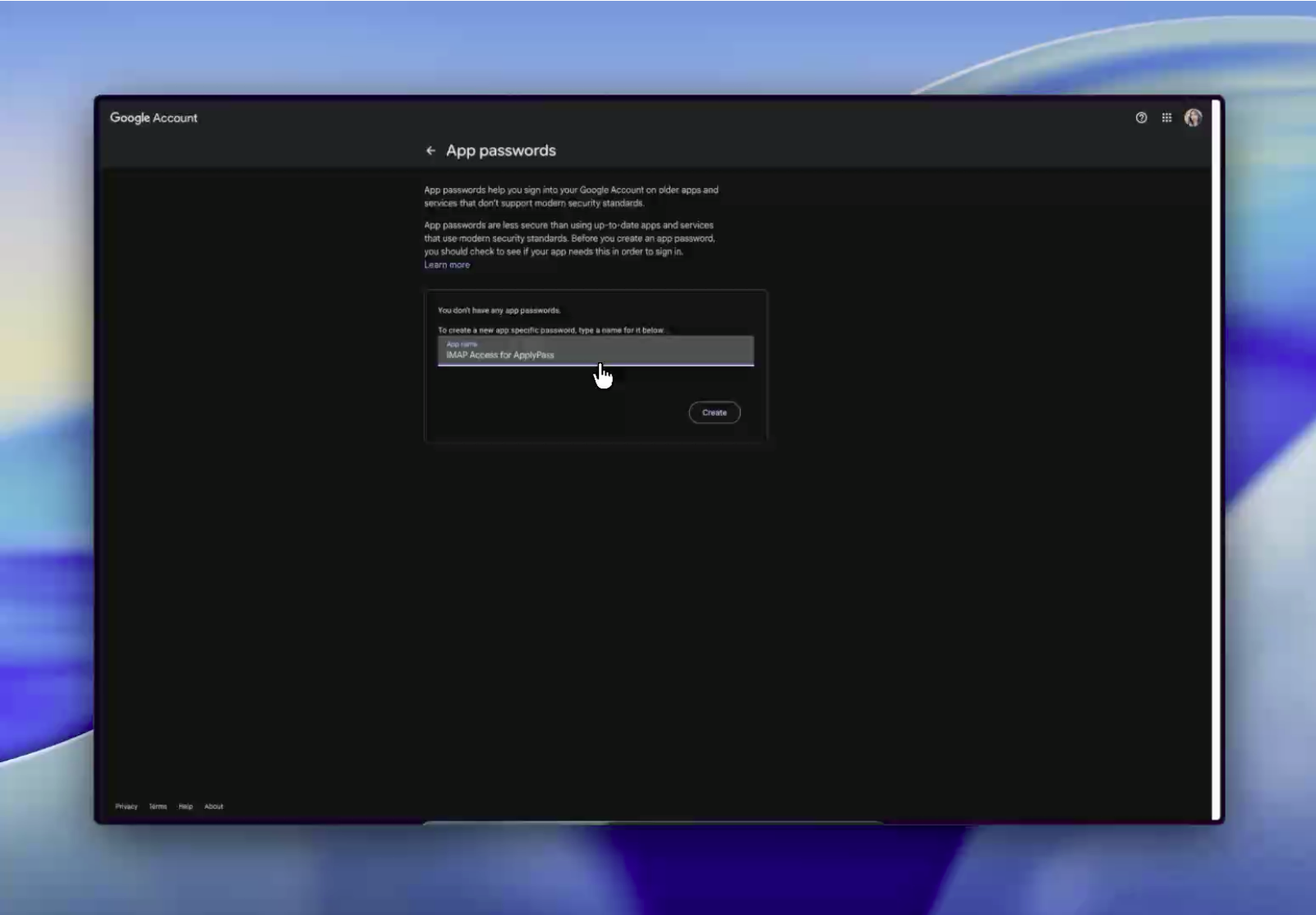
6. Create a new App Password
On the App Passwords page, you'll see a text field asking for a name. Type something recognizable like ApplyPass IMAP Access, then click Create. The name is just a label — it doesn't affect functionality.
7. Copy your 16-character App Password
Google will display a popup with a 16-character code. Copy it now — this is the only time it will be shown.
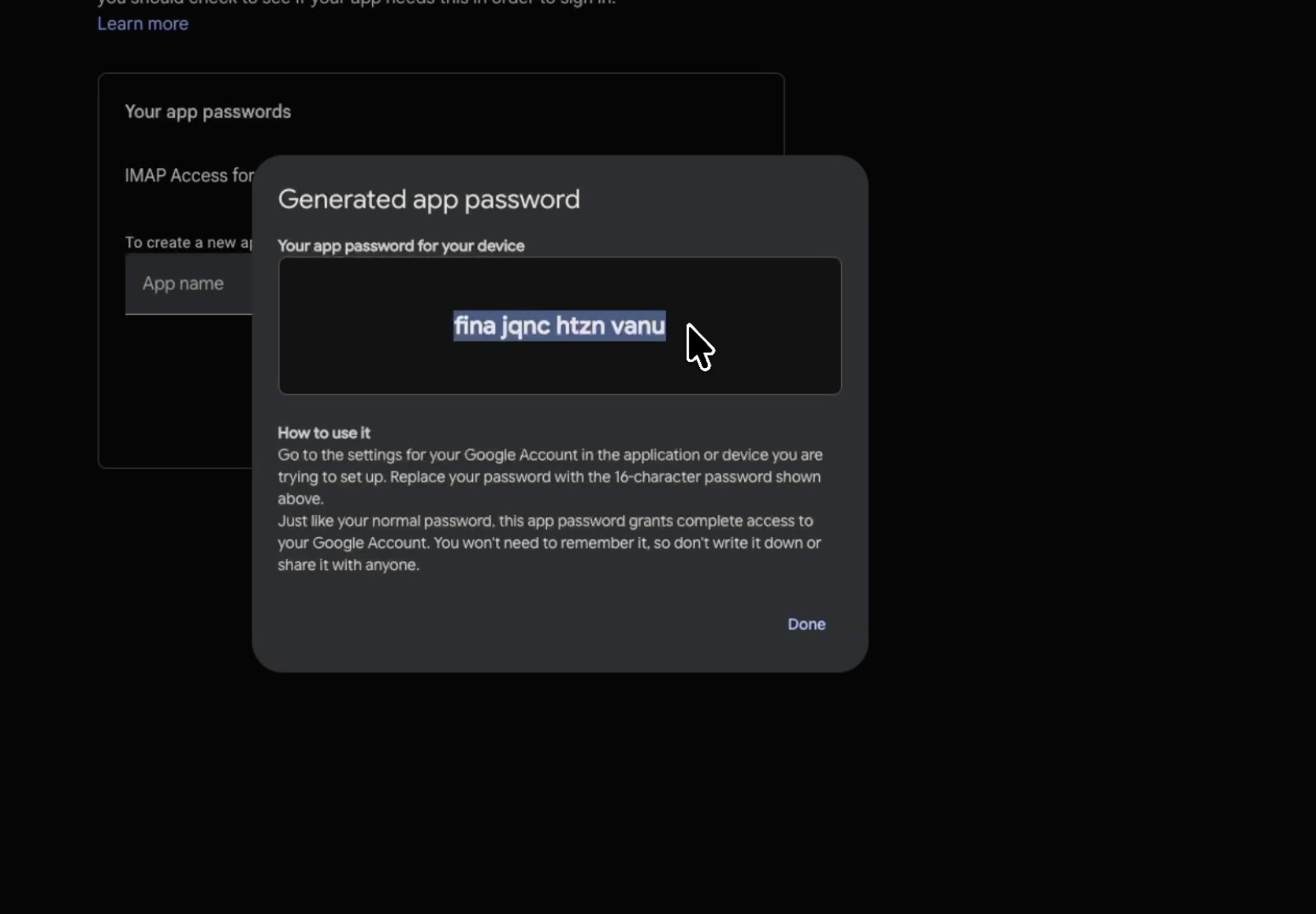
8. Paste the App Password into ApplyPass
Return to your ApplyPass profile and navigate to Edit Profile → Upload Resume. Enter your Gmail address and paste the App Password (not your regular Google password) into the IMAP password field.
Setup Part 2
Set up Glassdoor and Greenhouse accounts so ApplyPass can apply on your behalf
ApplyPass submits applications through several job platforms on your behalf. For Glassdoor (which also covers Indeed) and Greenhouse, you need to have a pre-verified account set up with the same email address you're using for job applications. This is a one-time step.
Glassdoor / Indeed
glassdoor.com
1. Go to glassdoor.com and click Sign Up
2. Register using your job application email address
3. When prompted, verify your phone number to complete signup — this step is required
4. Make sure your account is fully active before returning to ApplyPass
Greenhouse
greenhouse.com
1. Go to greenhouse.io and create a candidate account
2. Register using your job application email address
3. Complete any verification steps Greenhouse asks for
4. Make sure your profile is fully set up before ApplyPass starts applying
Revoking Access
You can disconnect ApplyPass from your Gmail at any time — it only takes a few seconds.
Remove IMAP access
Go to myaccount.google.com/apppasswords, find the ApplyPass IMAP Access entry, and click the delete icon. This immediately disconnects your account. Your real Google password is unaffected.
FAQs
Everything you need to know before getting started.

Some job application platforms send a one-time code to your email to verify your identity before submitting. ApplyPass connects to your inbox in read-only mode to retrieve these codes automatically — so your applications don't get stuck waiting for manual input.
We never send emails from your account or access anything unrelated to your job applications. We also never store the content of your emails.
An App Password is a 16-character code generated by Google that lets a specific app access your Gmail over IMAP — without ever knowing your real Google password.
Google introduced App Passwords because many third-party apps don't support modern OAuth sign-in. Instead of sharing your real password (which would give full account access), you generate a limited-purpose code just for that app. If you ever want to revoke access, simply delete that code — your real password is never affected.
We recommend creating a dedicated Gmail address just for job applications. While ApplyPass only reads emails and never modifies anything, your personal inbox likely contains sensitive information — banking alerts, medical correspondence, private messages — that has nothing to do with your job search.
Using a dedicated address means:
- ApplyPass only has access to a mailbox with job-related emails
- Your personal inbox stays completely separate
- Revoking access has no impact on your main account
- Application confirmations are easier to track in one place
Yes. The email address you connect here should be the same one listed on your resume and used when signing up on job boards. This ensures OTP codes and recruiter replies land in the mailbox ApplyPass is monitoring.
Not yet — we currently support Gmail only. Outlook and Yahoo support may be added in the future. For now, we recommend creating a free Gmail address dedicated to your job search.
Interview tracking based on email may be added to the product roadmap, but is not currently available. At this time, IMAP access is used exclusively to retrieve OTP verification codes during application submission.